iOS localization: strings files, plurals, and formatting
Developer resources
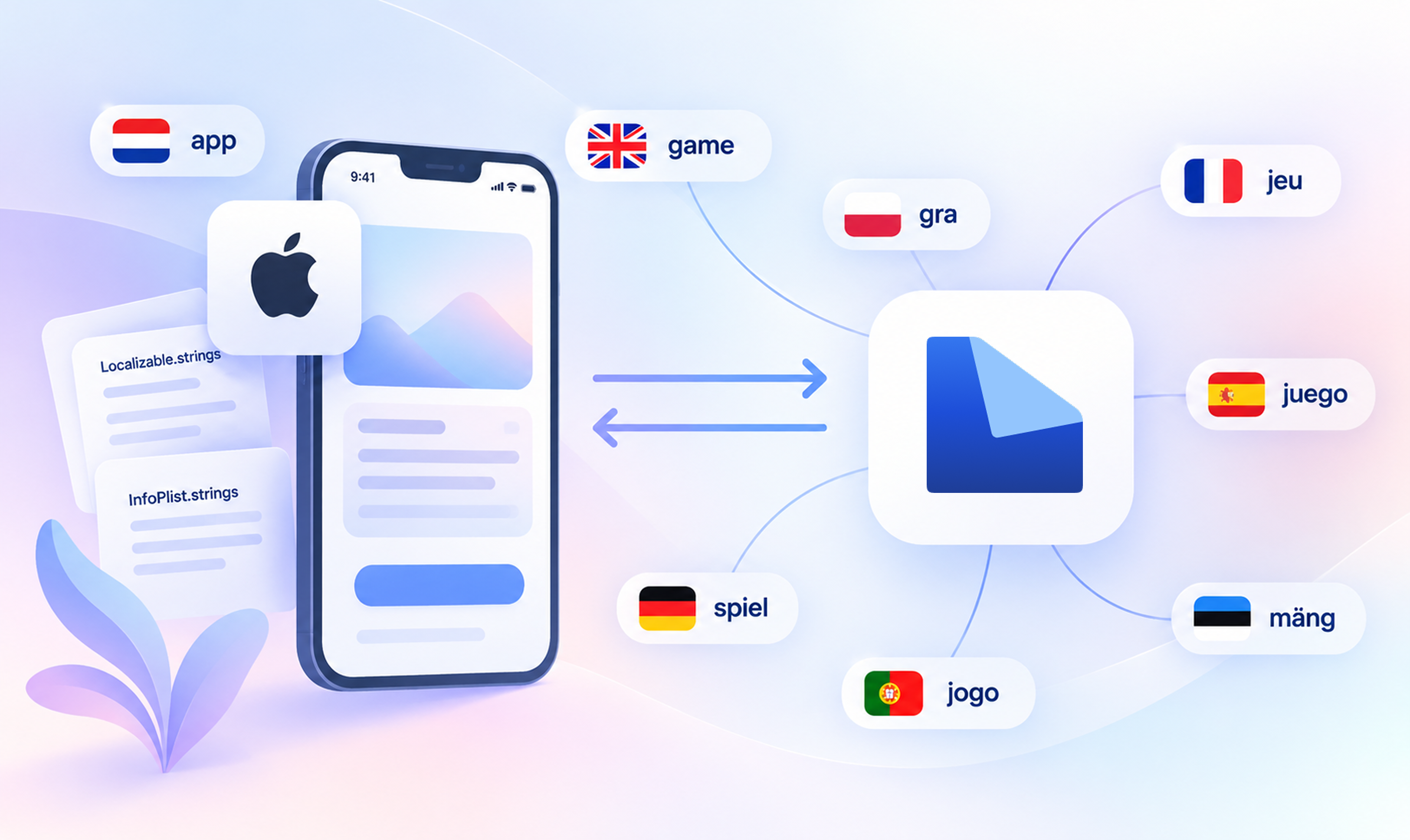
Table of content

Most iOS localization projects start with an app that was originally built in English. When another language is added, teams often discover that user-facing text is spread across SwiftUI views, view controllers, Info.plist, and other parts of the project.
Preparing the app for localization means identifying these strings, moving them into the appropriate resource files, and making sure iOS displays the correct version for each language. This guide explains how Apple localization resources work, which Swift APIs to use, and how to check for missing translations before they reach production. The examples use Xcode 16 or newer and Swift 5.9 or newer, with SwiftUI as the default unless a UIKit-specific API is required.
Internationalization, abbreviated “i18n”, is the engineering work that prepares an app to support different languages and regions without requiring changes to the underlying code. Localization, abbreviated “l10n”, adapts that app for a specific language or market through translations and locale-specific conventions.
Translation covers the text itself, while localization also includes plural forms, date and number formats, currencies, sort order, and layout direction. These requirements need to be considered during development because they cannot always be addressed through translation alone.
For an iOS app, internationalization includes moving user-facing strings into resource files and using APIs that load the appropriate localized values at runtime. Localization provides the translated resources and locale-specific content for each supported language, which iOS then resolves according to the user’s language settings.
Apple resolves localized resources through .lproj directories inside the app bundle. Each one is named for a language, holds a Localizable.strings file, and contains the same keys with different values.
MyApp/
  en.lproj/Localizable.strings
  de.lproj/Localizable.strings
  ja.lproj/Localizable.strings
  ar.lproj/Localizable.strings
A .strings file contains quoted key-value pairs, each ending with a semicolon. Comments can provide additional context for translators:
/* Title of the shopping cart screen */
"cart.title" = "Your cart";

/* Button that starts checkout */
"cart.checkout" = "Check out";
At runtime the system walks the user’s preferred language list and picks the first .lproj the bundle actually contains, falling back to the development region when none match. If an exact language match is unavailable, iOS checks the corresponding parent language. A device set to Austrian German (de-AT), for example, can use resources from de.lproj.
File | Location | Contents |
|---|---|---|
|
| the app’s user-facing text |
|
| app display name and permission prompts |
|
| plural forms for counted strings |
|
| a named table, one per feature or module |
This format persists in production codebases because existing apps already hold thousands of keys in it, and because .strings is what Objective-C targets, build scripts, and non-Apple tooling read without a parser. Apple’s localization documentation covers the bundle mechanics.
Start at the call site. In Swift, String(localized:) is the current API and it reads .strings files directly:
let title = String(
    localized: "cart.title",
    defaultValue: "Your cart",
    comment: "Title of the shopping cart screen"
)
Xcode extracts the comment into the file it generates for translators, and LingoHub turns it into the segment description shown beside the string.
In SwiftUI, a string literal passed to Text is treated as a LocalizedStringKey and localized automatically:
Text("cart.title")
This is also the most common bug in a half-localized app. Text has a second initializer taking a plain String, and that one does no lookup, with nothing in the compiler distinguishing the two:
// Localized: the literal becomes a LocalizedStringKey.
Text("cart.title")

// Not localized: a String variable takes the verbatim initializer.
Text(viewModel.screenTitle)

// Localize the variable explicitly.
Text(LocalizedStringKey(viewModel.screenTitle))
Permission prompts and the app name are localized separately in InfoPlist.strings, using the corresponding Info.plist keys. These values are displayed in the user’s language, making it important to include localized permission descriptions for every supported language:
"CFBundleDisplayName" = "Belegscanner";
"NSCameraUsageDescription" = "Wir brauchen Kamerazugriff, um Belege zu scannen.";
Keys are the part you cannot cheaply change later, because every translation in every language is attached to them.
Use structured, generic keys rather than the English text. cart.checkout survives a copy change; a key of "Check out" means editing the source text orphans every translation attached to it. Generic keys also let one project hold Apple and Android resources together, which matters if you ship both.
Use positional format specifiers whenever a string interpolates more than one value. Word order changes between languages, and a translator cannot reorder %@ %@:
/* Confirmation after an order. 1: customer name, 2: item count */
"order.confirmed" = "Thanks %1$@, we are preparing your %2$lld items.";
let message = String(
    format: String(localized: "order.confirmed"),
    customerName,
    itemCount
)
Match the specifier to the Swift type. Int is 64-bit on every device iOS runs on, which makes %lld correct and %d a latent mismatch. Apple’s String Format Specifiers reference lists the full set.
A translator seeing "cart.clear" = "Clear"; has no way to know whether that is a verb on a button or an adjective describing a filter. Write the comment at the point where you know the answer.
English needs two forms for a counted noun. Russian and Polish need four, and Arabic uses six. Hardcoding "\(count) items" produces text that reads as wrong in most of the languages you are adding.
.stringsdict is an XML property list that maps a count to the correct grammatical form per language:
<?xml version="1.0" encoding="UTF-8"?>
<plist version="1.0">
<dict>
    <key>cart.item_count</key>
    <dict>
        <key>NSStringLocalizedFormatKey</key>
        <string>%#@items@</string>
        <key>items</key>
        <dict>
            <key>NSStringFormatSpecTypeKey</key>
            <string>NSStringPluralRuleType</string>
            <key>NSStringFormatValueTypeKey</key>
            <string>lld</string>
            <key>one</key>
            <string>%lld item</string>
            <key>other</key>
            <string>%lld items</string>
        </dict>
    </dict>
</dict>
</plist>
Read it with String.localizedStringWithFormat, which applies the rule for the active language:
let format = String(localized: "cart.item_count")
let label = String.localizedStringWithFormat(format, itemCount)
Write only the categories your source language uses. English takes one and other; adding a zero entry to an English file has no effect, because English has no distinct zero form. The categories for each target language come from CLDR plural rules and are filled in by whoever translates that language, not by you. Apple’s guide to localizing strings that contain plurals documents the structure.
Number and date formatting is locale-specific even when every string is translated. 1,234.56 in the United States is written 1.234,56 in Germany, and the date 03/04 refers to a different day depending on the region.
Foundation’s FormatStyle API handles this, and it reads the user’s locale by default:
let total = 1299.99
Text(total.formatted(.currency(code: "EUR")))

Text(Date.now.formatted(.dateTime.day().month(.wide).year()))

Text(Date.now.formatted(.relative(presentation: .named)))

let distance = Measurement(value: 5, unit: UnitLength.kilometers)
Text(distance.formatted(.measurement(width: .wide, usage: .road)))
Never assemble a date by concatenating components, because the order itself is locale-specific, and never hardcode a currency symbol, because its position moves. Keep formatted values out of .strings files, passing them in as arguments, or you have asked a translator to maintain your number formatting.
FormatStyle also removes the older DateFormatter lifecycle problem, where constructing a formatter inside a table cell was an expensive operation repeated on every scroll. The FormatStyle documentation covers the available styles.
To make a language available in the app, include its .lproj directory in the bundle and add the language to the project’s localizations. For languages you ship outside the Xcode project, list them in CFBundleLocalizations in Info.plist. Apple documents the project side in adding support for languages and regions.
Since iOS 13, any app with more than one localization gets a per-app language setting in the system Settings app, with no work from you. Users change the language there and the app restarts in it, which covers most of what an in-app picker would do.
When you do need an in-app picker, write the selection to the AppleLanguages user default and let the user relaunch the app themselves:
UserDefaults.standard.set(["de"], forKey: "AppleLanguages")
Do not call exit() to force the restart. Terminating your own process is grounds for App Store rejection, and it looks like a crash to the user. Send them to the system setting instead:
if let url = URL(string: UIApplication.openSettingsURLString) {
    UIApplication.shared.open(url)
}
If your app deliberately mixes languages, for example keeping legal text in one language while the interface follows the device, set CFBundleAllowMixedLocalizations rather than working around the bundle lookup.
Arabic, Hebrew, Persian, and Urdu mirror the entire interface. iOS automatically adapts many interface elements for right-to-left languages. HStack changes direction, navigation transitions are mirrored, and text alignment follows the active language, provided the layout uses direction-aware APIs.
.padding(.leading, 16) mirrors correctly, while an Auto Layout constraint using leftAnchor remains fixed to the left instead of adapting to the interface direction. In UIKit, semanticContentAttribute overrides the inherited direction for a view that must not mirror, and effectiveUserInterfaceLayoutDirection reports the direction actually in force.
Each image needs an explicit decision. SF Symbols that represent direction carry mirrored variants and flip automatically. Custom assets do not, and each one needs its direction set in the asset catalog. Apple’s right-to-left guidelines cover which images should mirror and which must stay as drawn.
You can test right-to-left behavior before translations are available. Set the scheme’s App Language to the right-to-left pseudolanguage under Product, Edit Scheme, Run, Options, and the interface mirrors with your source strings in place. In SwiftUI, .environment(\.layoutDirection, .rightToLeft) gives the same result in a preview.
A single Localizable.strings file becomes difficult to maintain when several teams edit it.
Tables separate strings by feature within one bundle. String(localized: "title", table: "Checkout") reads Checkout.strings, and each team owns one file instead of contending on a shared one. Swift packages can manage localization independently. When defaultLocalization is defined in the package manifest, the package can include its own .lproj directories and access them through Bundle.module:
let title = String(
    localized: "checkout.title",
    bundle: .module,
    comment: "Title of the checkout screen"
)
Make sure localized strings are loaded from the correct bundle. If a lookup cannot find the requested localization, the key itself may be returned, causing checkout.title to appear in the interface instead of the translated value.
Automate the export rather than using Xcode’s menu. xcodebuild produces one .xcloc bundle per language, each containing an XLIFF file, and takes them back the same way:
xcodebuild -exportLocalizations \
  -project MyApp.xcodeproj \
  -localizationPath ./Localizations \
  -exportLanguage de -exportLanguage ja

xcodebuild -importLocalizations \
  -project MyApp.xcodeproj \
  -localizationPath ./Localizations/de.xcloc
Enable SWIFT_EMIT_LOC_STRINGS in build settings so the compiler extracts String(localized:) calls automatically, then run the export in CI and fail the build when an exported XLIFF contains a <target> that is empty or still equal to its source. The build then reports a missing translation before release. Apple documents the commands in exporting localizations.
Apple’s newer format, the String Catalog (.xcstrings), is a JSON file holding every language in one place instead of one .strings file per .lproj. It tracks per-string state, so Xcode can show which entries are new, translated, or stale after a source edit. Apple’s guide to localizing and varying text with a string catalog covers the editor.
Migration runs inside Xcode: right-click a .strings or .stringsdict file, choose the migration action, and existing keys and plural entries move across. Call sites do not change, since String(localized:) and Text read either format.
LingoHub handles .xcstrings as its own resource type and maps catalog states onto segment states, with new arriving as NEW, needs_review as TRANSLATED, and translated as APPROVED. Both formats are supported, which means a migration is a change to your repository rather than an interruption to the translation workflow. The String Catalogs documentation covers the mapping.
Practice | Why it holds up |
|---|---|
Generic keys, never English as the key | a copy edit does not orphan existing translations |
A comment on every ambiguous string | the translator gets context instead of guessing |
Positional specifiers ( | word order can change per language |
| Russian, Polish, and Arabic need more than two forms |
| separators and symbol position follow the locale |
Direction-aware layout throughout | leading and trailing constraints adapt to the interface direction |
Export and check in CI | the build reports a missing translation before release |
A localization workflow applies these consistently without manual file handling. LingoHub connects to the repository, picks up new and changed keys, and opens a pull request when translations are ready. Because Apple resource files are all named Localizable.strings and the language comes from the directory path, the repository integration is the reliable sync path; without it the language has to be specified by hand on every import. The Apple iOS documentation covers the processing rules.
On the way back in, quality checks compare each translation against its source for mismatched placeholders, missing entries, and inconsistent terminology, catching a dropped %1$@ before it reaches a device. A glossary holds terms that should read the same everywhere, translation memory reuses approved strings across releases, and AI translation produces a first pass for a human reviewer to approve or approves automatically and only demands human input if uncertain.
Teams that develop for both Apple and Android can reuse translated content across platforms instead of maintaining completely separate translation processes. Our Android localization guide explains how LingoHub handles Android XML resources, while the mobile app localization use case covers localization workflows for mobile applications.
Separately from resource file localization, LingoHub can deliver translation updates over the air through its iOS SDK without requiring a new App Store release. The article about our iOS SDK explains how to set this up.
Localization, iOS included, covers everything that adapts an app to a market: translated text, plural rules, date and number formats, currency, and layout direction. Translation covers the text conversion alone. An app can have every string translated and still display 1,234.56 to a German user because localization also includes locale-specific formatting.
Extract every user-facing literal into Localizable.strings under en.lproj, read them with String(localized:) or a SwiftUI Text literal, add one .lproj directory per target language with identical keys, move counted strings into .stringsdict, and format dates and numbers with .formatted(). Then add the export command to CI so a missing key fails the build.
Both work, and both are supported end to end. A new project with no existing resources can start with a String Catalog and get per-string state tracking in Xcode. A codebase already holding thousands of keys in .strings, or with Objective-C targets and scripts reading them, gains less from migrating now, and can move later without changing a call site.
This happens almost always because a String variable was passed to Text instead of a literal. Text("cart.title") treats the literal as a LocalizedStringKey and performs the localization lookup, while Text(someString) displays the value directly. Use Text(LocalizedStringKey(someString)) when the key comes from a variable, or keep the localization key as a literal at the call site.
Apple provides the core mechanisms required for localization, including .lproj directories, plural rules, locale-aware formatting, and automatic support for right-to-left layouts. A reliable implementation also depends on stable localization keys, useful translator comments, correct format specifiers, and automated checks for missing or incomplete translations.
As the number of supported languages grows, keeping resource files synchronized with application changes becomes more difficult to manage manually. LingoHub connects translation files, repository updates, quality checks, and reviews in one workflow, helping teams keep localized iOS content aligned with each release.
Want to test one project independently?
Start a 14-day free trial and try LingoHub with your own iOS translation files. No credit card is required.
Evaluating LingoHub for a larger organization?
Book a demo if your setup involves multiple teams, repositories, complex workflows, migration requirements, security reviews, or custom integrations.

i18n resource file formats: iOS .strings files
Read our blog post about localization resource file formats, focusing on .strings files used across Apple devices like iPhone and iPad. Learn more!
LingoHub iOS SDK: Localize your apps with OTA updates
Learn how to localize an iOS app with the LingoHub SDK. Our guide shows you how to add the SDK and update your mobile app text Over-The-Air without a release.

AI localization: Supercharge your translation workflow
AI localization uses artificial intelligence to streamline translation workflows, improve quality, and scale global content faster. Learn more in our blog.
)