Git commands for everyday development: a cheat sheet for 2026
Developer resources
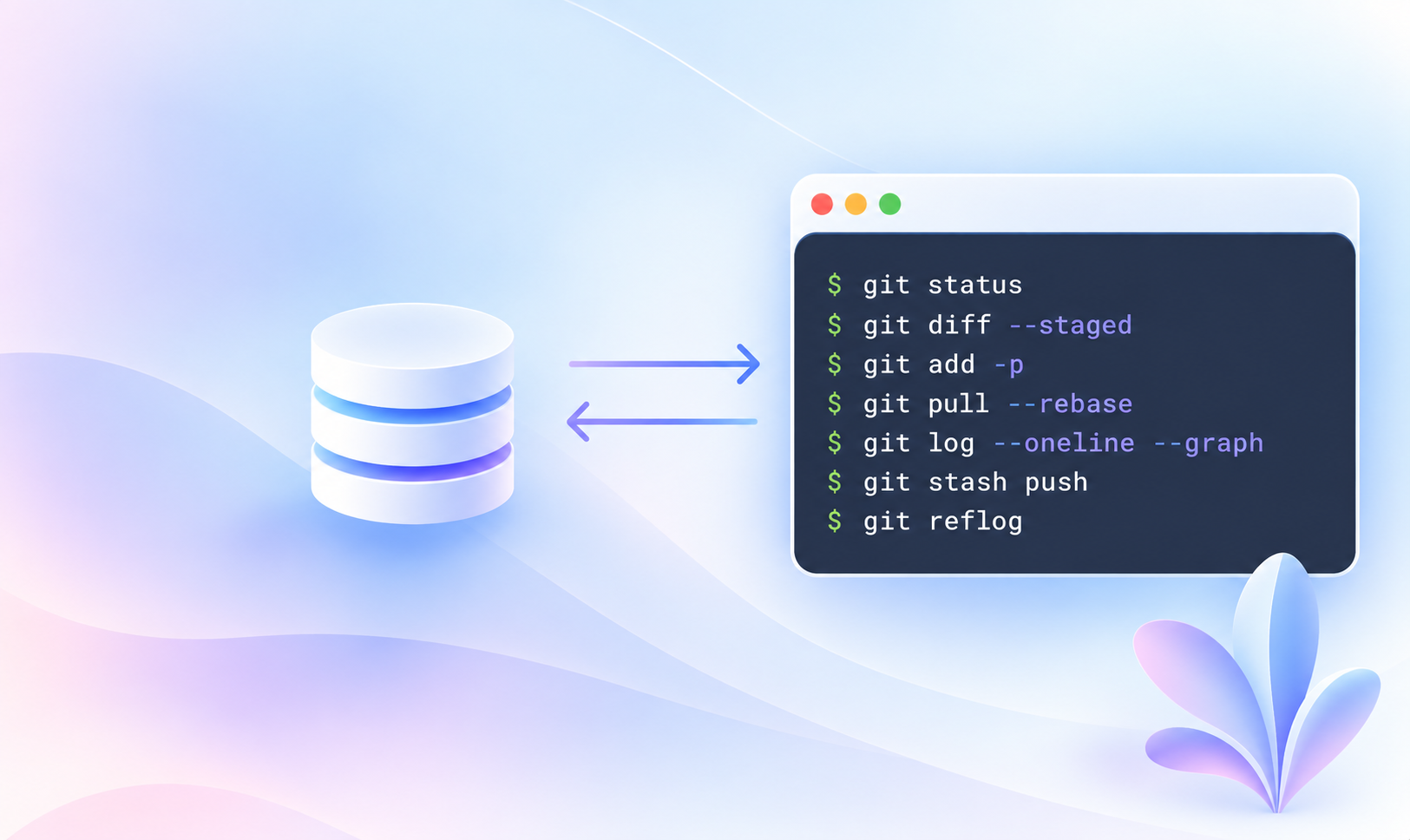
Table of content

Most developers learn Git in the order their projects happened to require it, which leaves gaps that appear years later. Undoing a rebase, checking out two branches at once, and recovering work that a force-push overwrote come up less often than add and commit. The git commands that handle those situations are short and stable, and this git commands cheat sheet groups them by the task you are doing rather than alphabetically.
The commands below are available in Git 2.51 and newer, the release where git switch and git restore became stable.
This git commands list covers what comes up in a normal working week. Each command is explained in the section that follows, with the flags that matter and the situations that call for it.
Command | What it does | When you reach for it |
|---|---|---|
| Creates a repository in the current directory | Starting a project that is not yet versioned |
| Copies a remote repository locally | Joining an existing project |
| Shows staged, unstaged, and untracked changes | Before every commit |
| Shows unstaged changes line by line | Reviewing your own work before staging |
| Shows what is staged for the next commit | Confirming a commit before you make it |
| Stages a file or directory | Selecting what goes into the next commit |
| Stages selected hunks interactively | Splitting mixed changes into separate commits |
| Records staged changes | Every logical unit of work |
| Rewrites the most recent commit | Fixing a message or a forgotten file, before pushing |
| Sends commits to the remote | Publishing finished work |
| Force-pushes only if the remote is where you last saw it | After rebasing a branch you already pushed |
| Fetches and replays your commits on top | Updating a feature branch without a merge commit |
| Shows compact history with branch structure | Understanding how branches relate |
| Lists local branches | Checking where you are |
| Moves to an existing branch | Changing branches |
| Creates a branch and moves to it | Starting new work |
| Joins another branch into the current one | Integrating a finished branch |
| Replays your commits on a new base | Keeping a linear history before review |
| Checks out another branch in a second directory | Reviewing or building two branches at once |
| Shelves uncommitted changes | An urgent interruption mid-task |
| Discards unstaged changes to a file | Abandoning a local edit |
| Unstages a file, keeping the edit | Staging the wrong file |
| Creates a commit that undoes another | Reversing something already pushed |
| Lists where HEAD has pointed recently | Recovering a commit you think you lost |
Several details in widely circulated cheat sheets are out of date, and the corrections change which command you should teach a new team member.
git switch and git restore replace git checkout for the two jobs it used to do on its own, changing branches and discarding file changes. git checkout still works and has not been deprecated.
Git 2.55.0 introduced git history fixup, a way to amend an older commit without an interactive rebase. Its manual page marks the command experimental and warns that the behavior may change.
git maintenance gained a geometric repacking strategy, the default since 2.54. Looking further ahead, the Git breaking changes document records what a future Git 3.0 changes: new repositories default to SHA-256 object names and to the reftable ref storage backend.
Two commands create a working repository. git init turns the current directory into one, and git clone copies an existing remote:
git init                                          # version this directory
git init -b main                                  # name the initial branch
git clone https://github.com/acme/app.git         # copy a remote repository
git clone --filter=blob:none https://github.com/acme/app.git  # partial clone
The --filter=blob:none form creates a partial clone that fetches file contents on demand. On a repository with a long history and large assets, that shortens the initial clone considerably.
git status reports which files are staged, modified, or untracked, and git diff shows the content changes:
git status --short                       # one line per file
git diff                                 # unstaged changes
git diff --staged                        # what the next commit will contain
git log --oneline --graph --decorate -20 # the last 20 commits with branch structure
Running git diff --staged before committing catches the debug statement or stray formatting change that would otherwise end up in the history.
Staging selects what goes into the commit. git add -p walks through your changes hunk by hunk and asks whether to stage each one, which lets you split a mixed working directory into commits that each do one thing:
git add src/parser.ts                   # stage one file
git add -p                              # choose hunks interactively
git commit -m "Handle empty keys"       # record what is staged
git commit --amend                      # rewrite the last commit
git push -u origin feature/parser-fixes # publish and set the upstream
Use --amend freely on commits you have not pushed. Once a commit is on a shared branch, amending it rewrites history that others may have pulled, and the fix becomes a force-push.
Force-pushing safely is where the git commands to commit and push work deserve the most attention. Plain git push --force overwrites whatever is on the remote, including a colleague’s commit that arrived while you were rebasing. --force-with-lease refuses the push when the remote branch has moved since your last fetch:
git push --force-with-lease
git push --force-with-lease --force-if-includes
According to the git push documentation, --force-if-includes is a no-op unless it is paired with a bare --force-with-lease or with --force-with-lease=<refname>. If you write it alongside a fully specified --force-with-lease=<refname>:<expect>, it does nothing at all. Configure the safe form once per machine instead of remembering the flags:
git config --global push.useForceIfIncludes true
git switch handles movement between branches and git branch handles the list:
git switch main                       # move to an existing branch
git switch -c feature/locale-fallback # create a branch and switch to it
git switch -                          # back to the previous branch
git branch -vv                        # local branches with tracking info
git branch -d feature/locale-fallback # delete a merged branch
Merging and rebasing both integrate work, and the difference is what the history looks like afterward. git merge preserves the branch structure and records a merge commit. git rebase replays your commits on top of the target branch, producing a linear history and new commit hashes:
git switch feature/locale-fallback        # move to the feature branch
git fetch origin                          # update remote-tracking refs
git rebase origin/main                    # replay your work on current main
git switch main                           # move to the shared branch
git merge --no-ff feature/locale-fallback # integrate, keeping a merge commit
A workable convention is to rebase your own unshared feature branch to keep review diffs clean, and merge into the shared branch so the integration point stays visible. git config --global pull.rebase true avoids the merge commits that accumulate when several people work on one branch.
Pull requests are worth naming precisely, because they are not part of Git. A pull request is a feature of the hosting platform: GitHub, GitLab, and Bitbucket each implement review, approval, and merge rules on top of the same branches. The GitHub pull request documentation covers the review side; to Git, the work is a branch you pushed. Automation that writes to a repository makes the same choice: LingoHub’s automatic pull and push settings either open a pull request on a dedicated update branch or push translated files straight to the target branch.
A worktree gives you a second working directory backed by the same repository. Instead of stashing your work to review a colleague’s branch, you check it out somewhere else and leave your own directory untouched:
check out an existing branch in a second directory
git worktree add ../review-pr-482 feature/pr-482

create a branch and check it out in a new worktree
git worktree add -b hotfix/urgent ../hotfix main

list every worktree, with its branch
git worktree list

delete a worktree once you are finished with it
git worktree remove ../review-pr-482

clear the records left by directories deleted by hand
git worktree prune
Those commands leave three sibling directories backed by one repository:
projects/
├── app/                      (main worktree, branch: main)
│   ├── src/
│   └── .git/                 the repository: objects, refs, config
│       └── worktrees/
│           ├── hotfix/       admin files for the hotfix worktree
│           └── review-pr-482/
├── hotfix/                   (branch: hotfix/urgent)
│   ├── src/
│   └── .git                  a file: "gitdir: .../app/.git/worktrees/hotfix"
└── review-pr-482/            (branch: feature/pr-482)
    ├── src/
    └── .git                  a file, not a directory
Each linked worktree holds a complete checkout of its branch, and its .git is a file pointing back into app/.git/worktrees/.
A long build or test run can continue in one worktree while you keep working in another. A hotfix against main does not require unwinding a half-finished feature.
Running several AI coding agents against one repository has turned this into a routine requirement. Two agents working in the same checkout overwrite each other’s edits, and a git switch issued by one moves the branch under the other mid-task. A worktree per agent isolates the filesystem while keeping one shared history:
one worktree and branch for the first agent
git worktree add -b agent/parser ../agent-parser main

a second, isolated from it
git worktree add -b agent/docs ../agent-docs main
Git refuses to check the same branch out in two worktrees, which stops two agents from committing to one branch. Their output merges through ordinary branches and pull requests, and discarding a run means git worktree remove rather than unpicking commits.
Worktrees share one object database, which costs far less disk space than a second clone. A branch can be checked out in one worktree at a time, the main worktree cannot be removed, and git worktree remove refuses a directory with uncommitted changes unless you pass -f. Deleting a directory by hand leaves stale administrative files that git worktree prune cleans up.
HEAD~1, HEAD@{4}, and other revision syntaxCommands in this section take a revision rather than a path. The gitrevisions documentation is the full reference; these cover everyday use:
Revision | Means |
|---|---|
| The commit currently checked out |
| One or three commits back, following first parents |
| The same as |
| Where HEAD pointed four moves ago, read from the reflog |
| The previously checked-out branch, which |
| An abbreviated commit hash |
| The remote-tracking ref, as of your last fetch |
HEAD~4 and HEAD@{4} answer different questions: the first walks four commits back through history, the second asks where HEAD was four moves ago, counting moves that left no commit.
Most Git accidents are recoverable, and choosing the right command depends on whether the mistake has been pushed.
For local changes that have not been committed, git restore is the targeted tool:
git restore src/config.ts                 # discard unstaged edits
git restore --staged src/config.ts        # unstage, keep the edit
git restore --source=HEAD~2 src/config.ts # take the version from two commits back
For commits, the choice is between rewriting and reversing. git reset moves the branch pointer and is appropriate for local history; git revert creates a new commit that undoes an earlier one and is the correct answer for anything already pushed:
git reset --soft HEAD~1  # undo the commit, keep changes staged
git reset --mixed HEAD~1 # undo the commit, keep changes unstaged
git reset --hard HEAD~1  # discard the commit and the changes
git revert a1b2c3d       # undo a pushed commit with a new commit
git stash handles the interruption case, and naming the stash makes the list readable a week later:
git stash push -m "half-finished locale fallback"
git stash list
git stash pop
git stash push -u -m "including new untracked files"
Git 2.52 added a stash.index config option that makes git stash pop and git stash apply behave as though --index were passed, restoring your staged and unstaged split rather than flattening it.
When you need to fix an older commit rather than the most recent one, git commit --fixup and git rebase --autosquash do it without editing a todo list by hand:
git commit --fixup=a1b2c3d          # content fix for an older commit
git commit --fixup=reword:a1b2c3d   # message-only fix
git rebase --autosquash origin/main # fold every fixup into its target
git reflog records every position HEAD has held, including ones no branch points at any more. A reset that went too far, a deleted branch, an abandoned rebase: all are still reachable.
git reflog                            # every recent position of HEAD
git switch -c recovered-work HEAD@{4} # start a branch from one of them
Reflog entries expire after 90 days by default, which is the actual limit on recovering a commit that no branch points at.
Repositories with long histories and many branches slow down. git maintenance schedules the background work that prevents it:
git maintenance start      # register and schedule hourly runs
git maintenance run --auto # run now, only the tasks that are due
git maintenance is-needed  # exits 0 when maintenance would help
git maintenance start configures the repository and schedules a run every hour. is-needed (Git 2.53) suits a CI step that should only pay the cost when maintenance is due.
Translation files are stored in the repository alongside source code, and they generate a specific kind of churn: many small changes, from people who are not running Git commands, landing on files that several feature branches touch at once. A messages.en.json updated by three parallel branches produces merge conflicts, and resolving one by hand risks dropping a key that no test covers.
LingoHub connects to the repository directly, pulls new and changed keys automatically, and opens a pull request when translations are ready, which keeps the translation round trip inside the same review process as the rest of the code. The GitHub integration handles the repository side, and the localization workflow covers how updates move between branches. The GitHub App update for mobile localization shows how this runs for mobile teams.
The same tracking limits how much translation each release needs. Each segment has a source and a target status, and the repository sync pulls new and changed keys rather than whole files, so only the strings that actually changed go out for translation. Anything already approved comes back from the translation memory as an exact or partial match, and nobody pays to translate the same sentence twice.
Quality checks catch mismatched placeholders, missing translations, and inconsistent terminology while the branch is still in review. And every key in the source language stays tracked across all target language files, which means a git diff on a translation file shows an intentional change rather than a structural one.
git status, git add, git commit, git push, git pull, and git switch cover the daily loop. Add git log --oneline --graph for reading history and git restore for undoing local edits, and you can work on a team without assistance.
Stage with git add <path>, record with git commit -m "<message>", and publish with git push. A new branch’s first push needs git push -u origin <branch>; after that a bare git push works.
Use git revert <commit>, which creates a new commit reversing the change and leaves the shared history intact. Reserve git reset and a force-push for branches nobody else has pulled, and use --force-with-lease when you do.
When you need two branches available at the same time: a running build, a review of someone else’s branch, a hotfix against main while a feature is half finished, or several AI agents working in parallel. A worktree shares the object database with the original repository, which makes it much cheaper than a second clone.
The Git reference manual documents every command and flag, and Pro Git covers the underlying model. git help <command> opens the same page locally.
The git commands in this cheat sheet cover a normal working week: staging deliberately, pushing without overwriting a colleague, keeping branches readable before review, checking out two branches at once, and recovering from mistakes. Bookmark the table, and turn on push.useForceIfIncludes while you are here.
LingoHub brings translation files, repository updates, quality checks, and reviews into one workflow to help you manage localization as your codebase grows. Start a free 14-day trial to try LingoHub with your own translation files. Or book a 30-minute localization review to discuss your requirements with our team.

Use Git commit sha to keep track of running version in production
Read this instruction on using Git commit SHA to keep track of the running version in production and make deployed code easier to identify and trace.
Integrating internationalization in a GIT workflow
Control the project versions with LingoHub. Our branching support allows work with the different branches and keeps the project clean.

AI localization: Supercharge your translation workflow
AI localization uses artificial intelligence to streamline translation workflows, improve quality, and scale global content faster. Learn more in our blog.
)